Find and view documents
Search your accessible content, open a file, and work with its preview and citations.
Search and preview the documents your account is allowed to access. Search results and AI citations are not a way to gain access to restricted material.
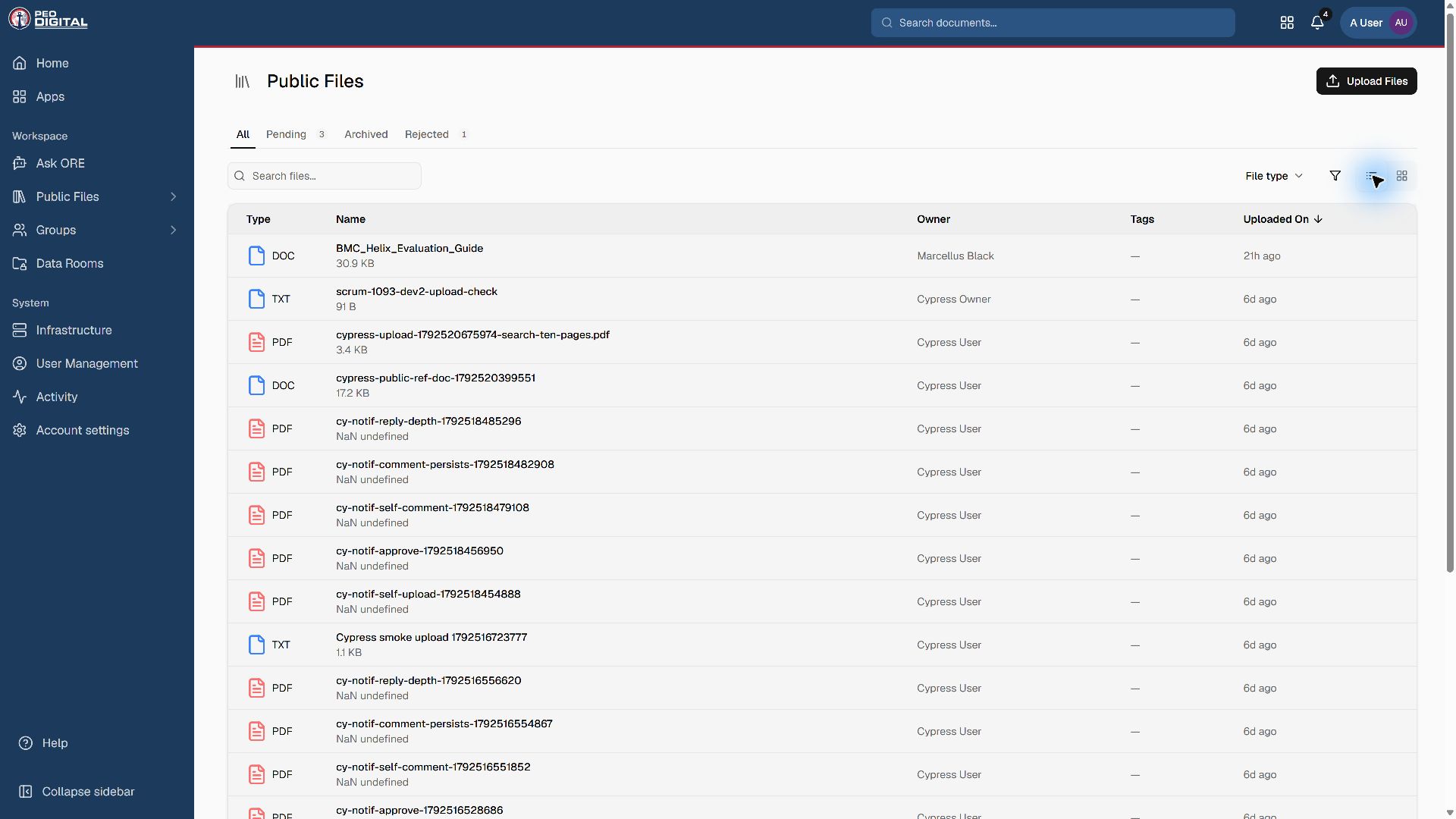
Search the library
- Open Public Files, a group, or a data room.
- Use its search field to narrow the list. Add file-type or status filters when available.
- For a broader search, use the header's document search.
- Open a result and check the title, destination, and status before using it.
An empty result can mean there is no matching accessible document, not that a document exists somewhere you cannot see. Check spelling, simplify your query, and confirm the destination with its owner.
Use the document viewer
The viewer displays the file's title, metadata, and approval status above its preview. Depending on the format, use page navigation, zoom, or fullscreen controls. Some formats offer a download fallback instead of an inline preview.
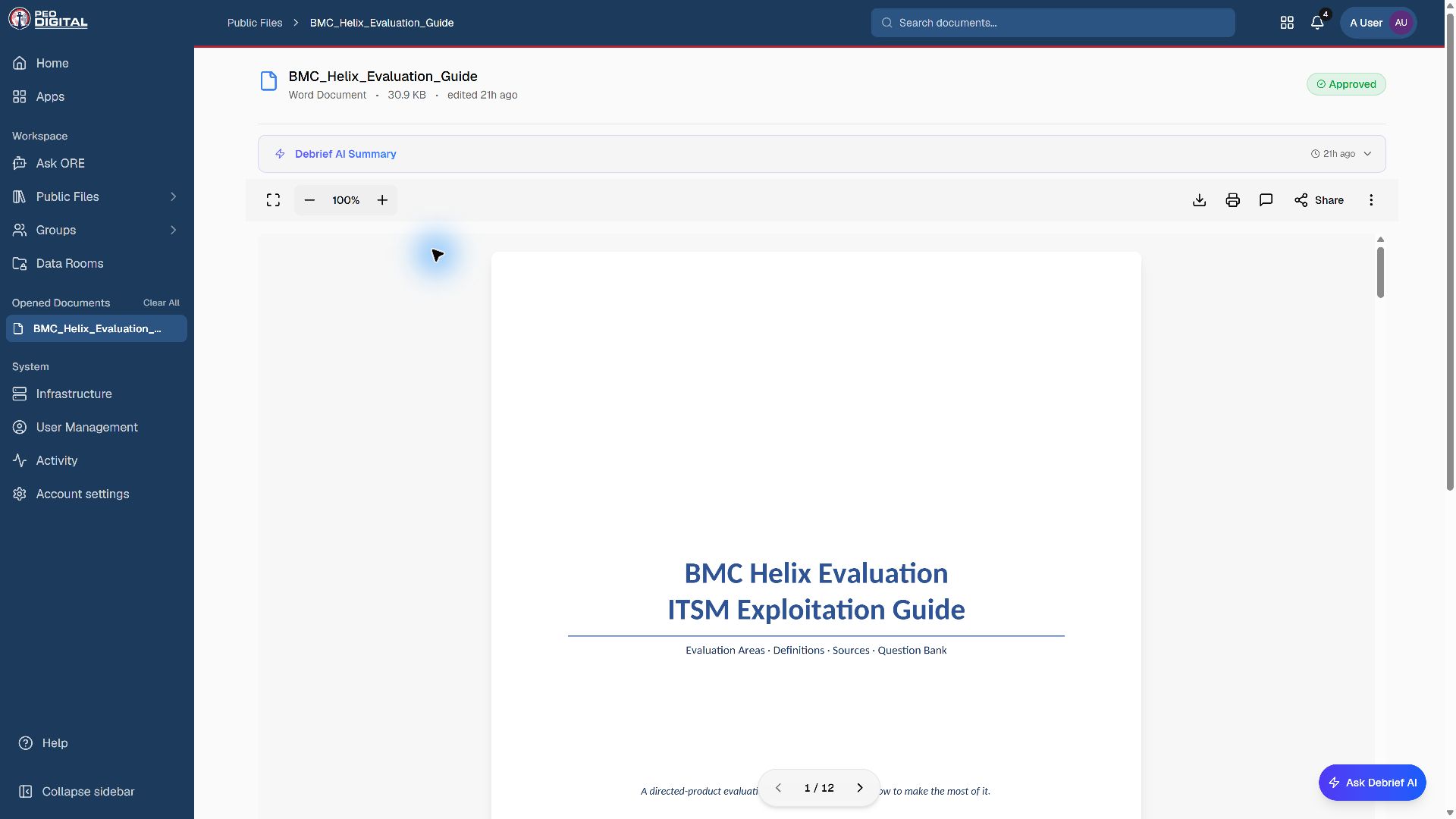
In this reference, the file name, Word document type, size, and Approved status appear above the preview. Use the toolbar's minus and plus controls to change zoom, or fullscreen to expand the preview. The page control at the bottom shows 1 / 12 with previous and next arrows.
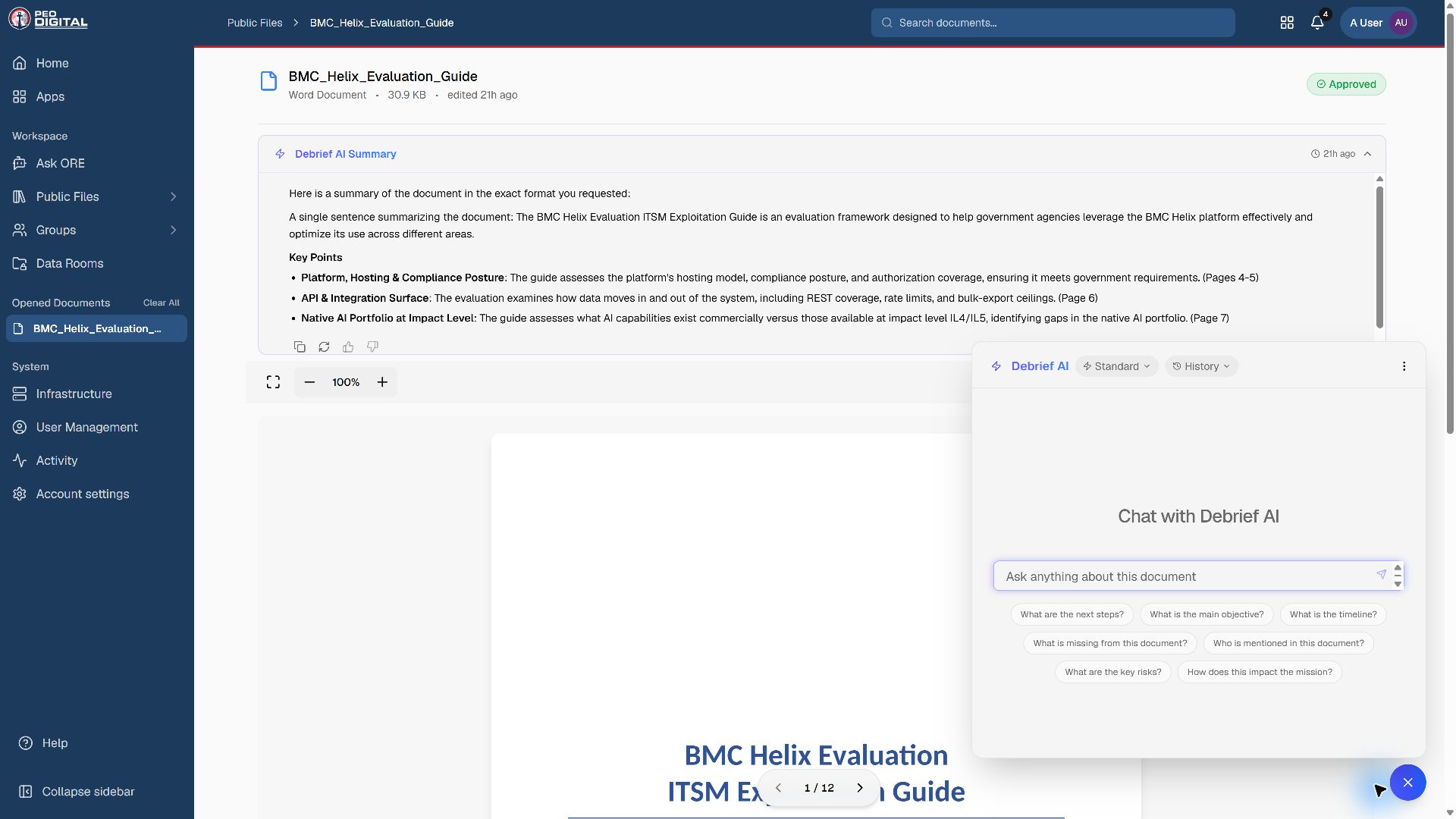
Debrief AI Summary expands separately above the toolbar. Download, print, comments, and Share appear on the right when available; Ask Debrief AI opens the document-specific chat.
Viewer actions depend on permissions and content-protection settings. A missing Download or Print action is not necessarily an error.
Work with AI and citations
Use Ask ORE for questions across your accessible corpus. Use document-specific AI features when your question concerns the open file. Generated answers and summaries require verification against the source.
When a response includes a citation, open it and inspect the supporting content. Confirm the document, passage, and version before relying on an answer. A summary is not an approval decision or an authoritative replacement for its source.
Share a link safely
Use the available sharing action or copy the document URL. Confirm the recipient's access to the destination; a link by itself does not add group membership or create an external invitation.
For external sharing, use the organization's approved data-room workflow, not a public upload as a workaround.
Unavailable and archived files
Documents may be unavailable because of access restrictions, archive state, or processing errors. Ask the owner to check the file. Do not infer that an inaccessible URL confirms a document's existence or status.
Use Archived where available to find files you are entitled to see and restore. Archive is different from permanent deletion; contact an authorized owner before removing a document from active use.