Roles and permissions
Understand platform roles, group membership, and why administrative access is not content access.
Maestro separates platform administration from content access. Start with ordinary access and add only the permission needed for the task.
System Admin does not mean access to every document. System Owner is the elevated platform-wide content role and should be assigned sparingly.
Platform roles
Registered user is the default for an authenticated account without an explicit administrative role. Content access comes from public availability and applicable group or room membership.
User Admin can create and update accounts and resend invitations. It cannot archive users or assign administrative roles. It has standard content access.
System Admin can manage accounts, archive and restore users, and assign or remove User Admin. It can access platform administration but has standard content access. It cannot assign System Owner or System Admin.
System Owner has full platform control, including elevated content access, approval of public documents, and assignment of all platform roles. It can manage groups and rooms across the platform.
These descriptions follow Maestro's shared permission definitions and role descriptions; organization-specific authorization procedures still apply.
Group and room access
Group owners manage their group and its members. Group members collaborate within the group's access rules. These are workspace relationships, not values to add to the platform-roles list.
Room owners and invitees operate within the data-room access model. An external invitee remains on the room's separate authentication surface. Do not provision a System Admin account merely to share a room.
Review and change a role
- Confirm that your account has the required administrative permission.
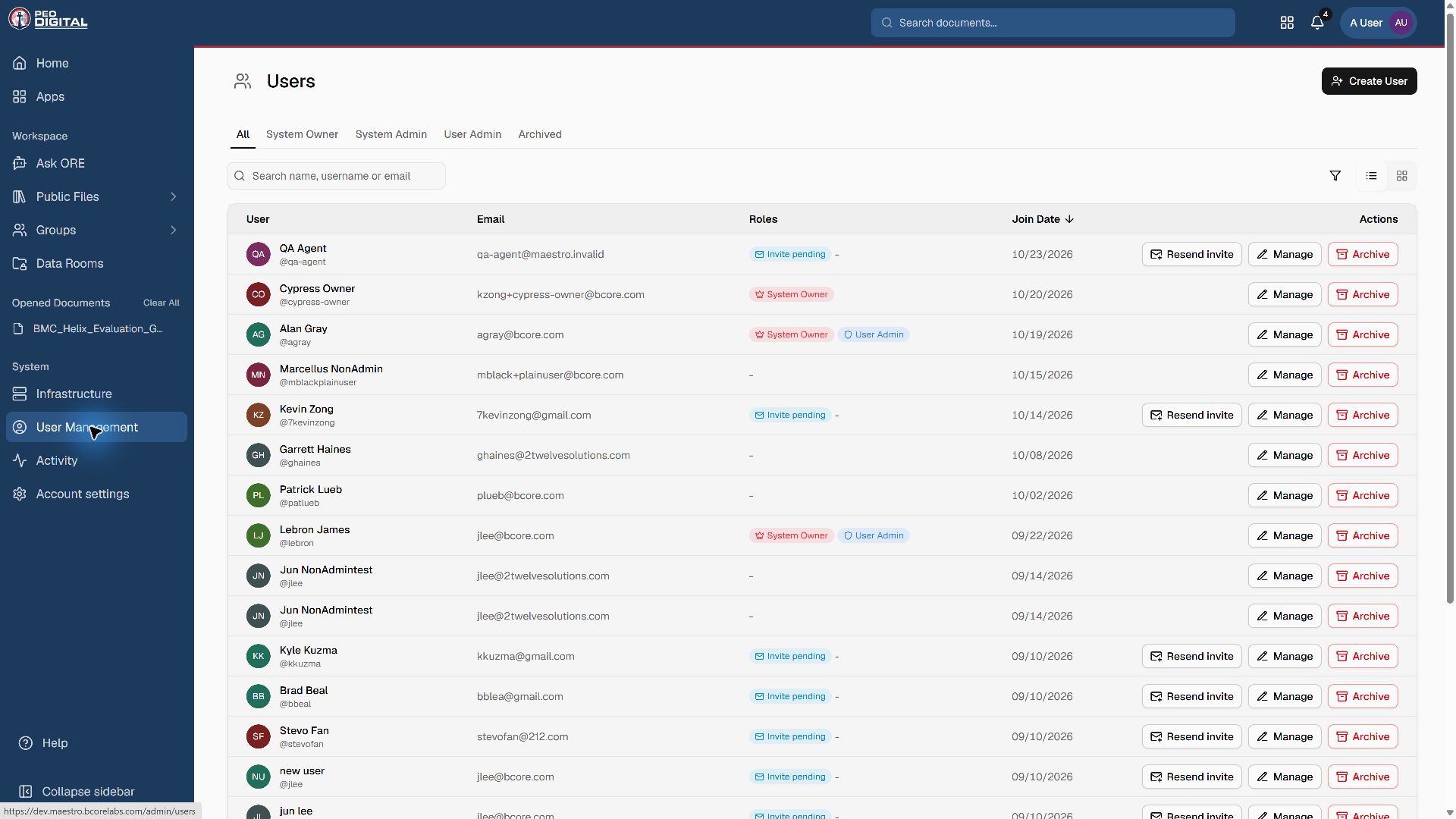
- Open User Management and locate the correct account by work email or username.
- Open the user's management action and review the current role selection.
- Apply only the authorized change. Disabled controls reflect your role-assignment limits.
- Confirm the saved role. Verify required group and room memberships separately.
Role changes propagate through the session-refresh flow; do not assume that the open page instantly proves the new permission. Verify with the affected account after refresh, without exchanging credentials.
Approval is destination-specific
Public-document approval is a System Owner capability. Group and room owners can act within their respective destinations. An upload may be accepted and still need review; a successful upload does not grant approval powers to its uploader.
When access looks wrong
Check the signed-in identity, destination, membership, and administrative role as separate facts. Ask an owner to review those facts before escalating to a broader role. Report unexpected access immediately to ore-support@bcore.com.