Groups and data rooms
Understand the difference between team collaboration and controlled external sharing.
Groups support internal team collaboration. Data rooms support controlled sharing, including a separate invitation path for external recipients. Choose the workspace based on audience and policy, not convenience alone.
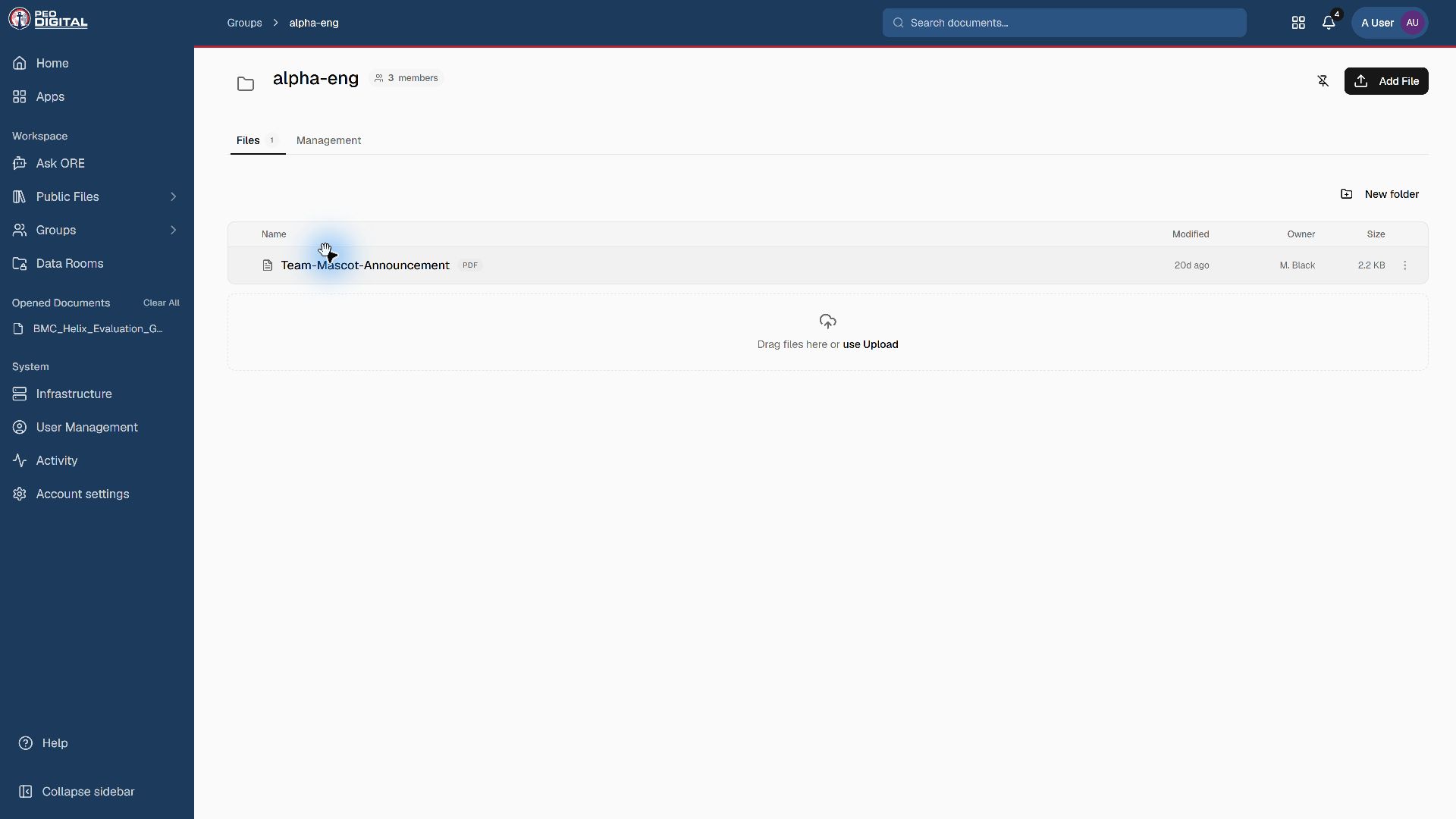
Work in a group
- Open Groups and select your team.
- Open Files to browse the group's documents and folders.
- Choose Add File to add material to this group.
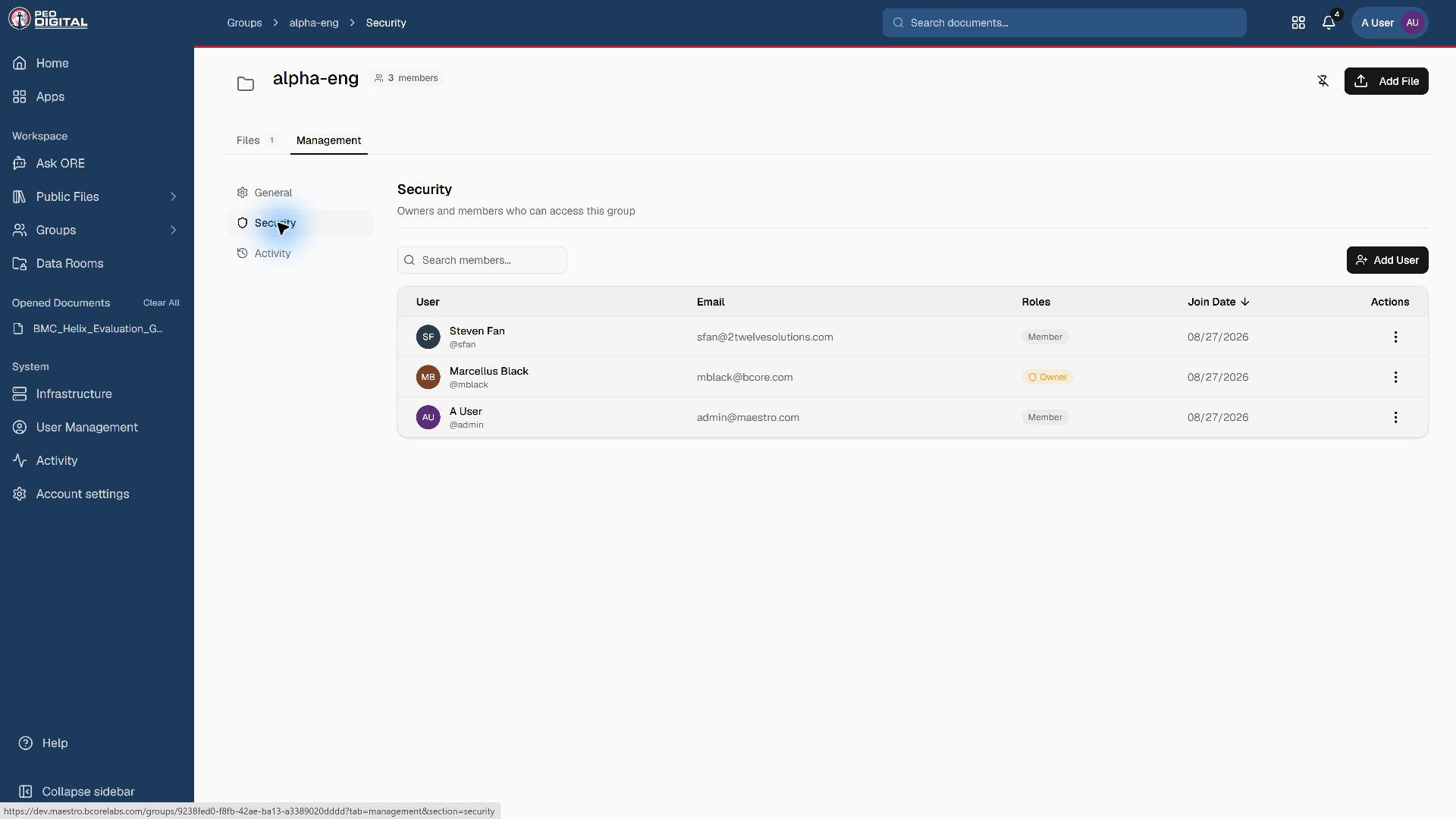
- If you own the group, open Management, then Security, to review owners and members.
A group owner manages that group. Group ownership is not a platform-wide System Owner role. If you cannot see Management, ask an owner rather than requesting a platform administrator role.
Work in a data room
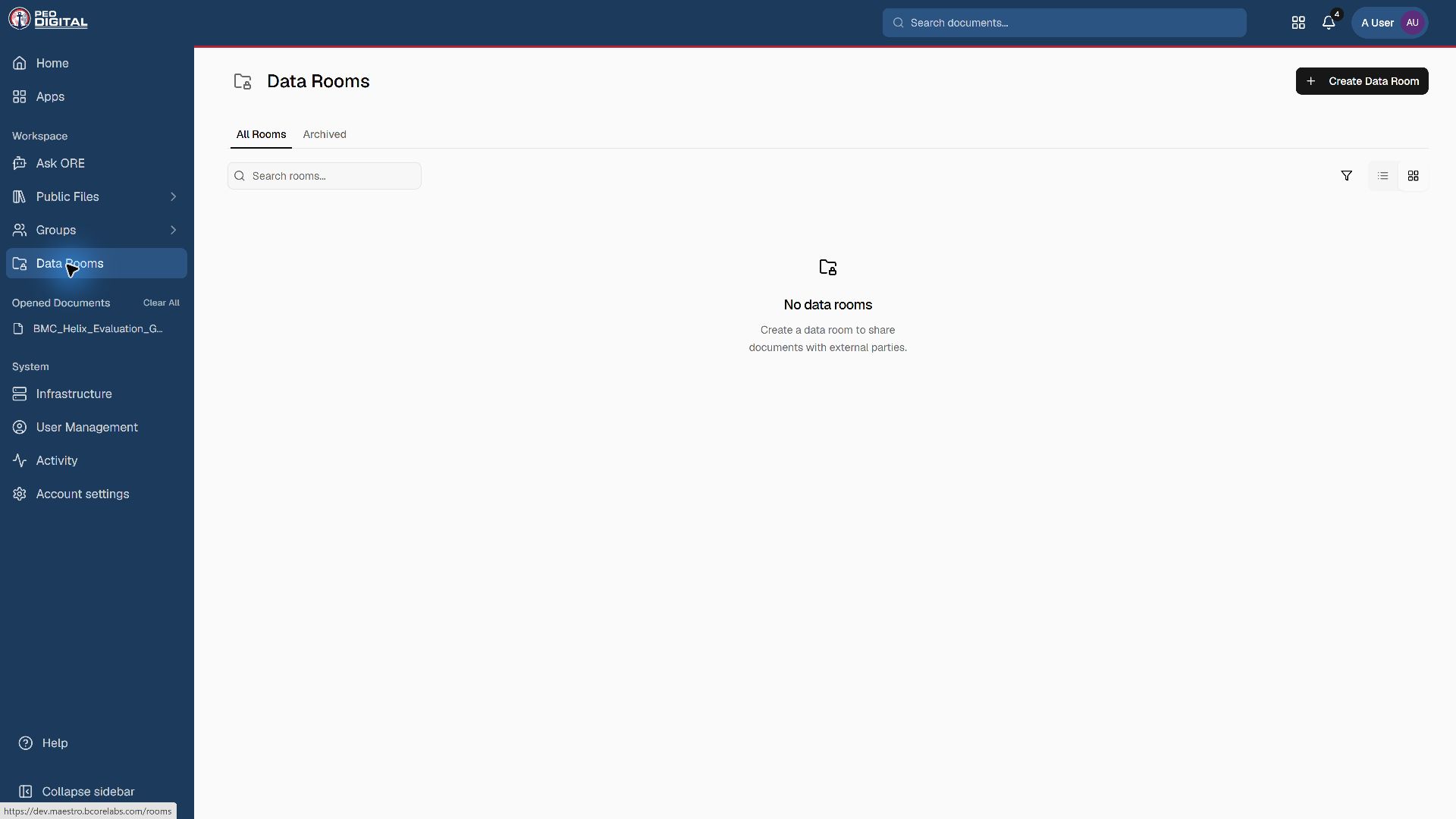
Open Data Rooms and select the appropriate room. Add files from inside the room so its document destination is unambiguous.
Owners should check the room's configured access policy before inviting anyone. Review recipient identity, invitation validity, available verification or PIN requirements, and file actions such as download. Use only controls present in your deployed version; not every room has the same policy.
External recipients use their room invitation and verification prompts. They do not receive an internal account or platform administration permissions through a room invitation.
Review membership
- Confirm each owner has a continuing business need.
- Review members and external invitees separately.
- Remove access that is no longer required using the workspace's supported controls.
- Confirm at least one appropriate owner remains before removing an existing owner.
Use Roles and permissions to distinguish platform roles from workspace access.
Avoid accidental oversharing
Do not move a restricted file to Public Files just to make a link work. Do not assume that a parent-team name, tag, or document title grants access. Check the destination and the actual membership or sharing policy.
If you believe a file was shared incorrectly, contact the workspace owner and ORE Support immediately. Include the URL, not a new copy of the sensitive file.